Ten years ago I was a flashing-ROM boy when using Android, and ten years later I'm still that same flashing-ROM boy.
That sentence is almost the best summary of my Dragon Boat Festival holiday.
A week before that, I bought a Xiaomi 11 Pro. It wasn't really because I needed a new phone; I just wanted to tinker a bit and see what the Android ecosystem has developed into nowadays. Also, having a device that can run Linux means you can play with lots of other tricks too. Of course, since it was discounted for the 618 sale and I happened to be on a business trip in Beijing, I could use Beijing consumer coupons, so I got this 8 + 128GB device for less than 3900 yuan.
Since I bought it to tinker with, of course I wanted to root it. But these days you can't root it directly. Unlocking has restrictions: you first need to bind the phone to your Xiaomi account and then wait 168 hours (7 days). You can refer to the official tutorial for details.
I wasn't in a hurry, so I first spent some time experiencing the original Chinese MIUI. MIUI still has many features, just like in the old days, but it really also has ads everywhere. It made me feel more and more that the iPhone 12 mini in my hand is truly great. The Android ecosystem is too troublesome to put your mind at ease, although it does feel much better than before. Domestic apps are equally intense, full of flashy recommendations and noise, but on iOS they are still somewhat more restrained. As for Xiaomi, I think the current experience is still some distance away from truly high-end. The features are indeed very down-to-earth, and some of them surprised me, but many details still need polishing. For example, the white balance of the three cameras is inconsistent. By comparison, the tuning on iOS is simply incredible. Software quality on iOS has declined in recent years, but it is still one or two body lengths ahead of MIUI. I've also been paying some attention recently to Huawei's HarmonyOS, and I think Xiaomi's investment in R&D may really still be insufficient. The advertising problem is also a hurdle on its high-end path. From my experience, it's true that most ads can be turned off, but they're all hidden very deeply. Xiaomi's business strategy is also awkward: if it wants an internet-company valuation, it needs internet business, and ads seem to be one of the few ways to monetize that side. But in fact the revenue contribution doesn't seem that large, so I think it's kind of a chicken rib—of course, I don't know what Xiaomi's big bosses think. I also don't know why, but after installing Google Play, I still couldn't download apps. While debugging, I found that it probably wasn't my network, but I also noticed that the system sends requests to way too many bizarre domains during normal operation. In terms of privacy and security, it really doesn't inspire much confidence.
A week later came the three-day Dragon Boat Festival holiday, and the tinkering began. The unlocking process has an official tutorial, so I won't go into it. My first choice for flashing was the international version (which actually feels like the US version), but later I found that MIUI hadn't updated to 12.5 yet, so I switched to the European version, which is said to update faster and to be more restrained about privacy, with fewer ads. I also won't go into the specific flashing tutorial, but one point worth mentioning is that you need to download the full ROM package, and there is also an official tutorial. The unlocking tool has to be used on Windows, but I verified that flashing can also be done on macOS with some minor script modifications. Just be careful not to re-lock the device.
Since I'd already flashed it, of course I still wanted to play with root. The popular tool these days is Magisk. Note that the .com website that comes up in Google search does not belong to the author; the author's only page is the one on GitHub. It seems the download still comes from GitHub, but it's safer to go to GitHub directly. The process is explained clearly in the Magisk documentation, so I won't translate it. One special reminder: when installing Magisk modules, make sure adb is enabled first, and use a computer to connect once so the phone trusts it. When things get messed up, that can sometimes save your life.
The European version of MIUI actually lacks many useful features, such as:
- Transit cards and access cards
- Xiaomi App Store
- Advanced permission controls such as flares
In theory these can be restored through Magisk, so I spent some time tinkering with that too. In the end, though, I only got transit cards, access cards, and the Xiaomi App Store working; I couldn't get anything else to work. I'm not sure whether that's because the European version is currently 12.5.3 while the mainland version is 12.5.4, or for some other reason. In particular, when I tried to restore the permission controls, the phone directly became unable to boot, and even using adb to go in and uninstall the module didn't help.
There are several articles online explaining how to restore transit cards and access cards. I tested them, and perhaps because this is now a newer version, following those steps still didn't work for me. After opening Xiaomi Wallet, tapping on access cards or transit cards did nothing, so I did some tinkering myself.
What is described online is all based on older ways of creating Magisk modules. The newer version is actually very simple and doesn't need that many files. You can refer to the documentation for details; I'll just describe it briefly here.
Create any folder you like, and create a new file module.prop, for example:
id=mi_smart_card
name=Xiaomi Smart Card
version=v0.0.1
versionCode=1
author=Yingyu
description=Add MIUI CN Features to 11 pro
Find the corresponding mainland China MIUI version and extract the corresponding apps from /system/app/. I have no interest in using UnionPay cards on this phone, so I felt I didn't need to restore that functionality. I tested it and found that if I only wanted transit cards and access cards, I just needed to restore TSMClient. One thing worth noting is that inside /system/app/TSMClient/lib/arm64 there are two symbolic links, and you also need to copy the files they point to, namely libentryexpro.so and libuptsmaddonmi.so from /system/lib64. Of course, considering that some apps aren't available on Google Play, I also restored the Xiaomi App Store, MiuiSuperMarket.
For transit cards and access cards, you need to change the NFC Security element settings in system settings to Embedded secure element. However, the European version does not have this option. To restore it, you need to modify the system prop. Specifically, create a new system.prop file in the root directory with the following contents:
ro.se.type=eSE,HCE,UICC
Zip up the contents of the folder above, download it to the phone, and in Magisk choose Install from storage.
After installation, this module will only add a Xiaomi App Store icon to the home screen. However, you still won't see any trace of access cards or transit cards. We need to create shortcuts for them. Here we use the Shortcut app. After downloading it, go to Activities and create several shortcuts for the Xiaomi Smart Card app, namely:
- Access card:
com.miui.tsmclient.ui.MifareCardListActivity - Transit card:
com.miui.tsmmclient.ui.introduction.CheckServiceActivity - Double-click power interface:
com.miui.tsmclient.ui.quick.DoubleClickActivity
Among them, the double-click power one must be enabled before you can register and use it from the lock screen by double-clicking. The other interfaces can be used normally. For transit cards, you need to log into your Xiaomi account in system settings; after binding a transit card, only then can you have more than two access cards.
I replaced all of Xiaomi's cloud services and also turned off Find Device, but when I tried to use adb to uninstall this app, the phone became unable to boot. Yet this thing tirelessly stays active in the background and even pushes notifications to me. I don't have any good solution, so I can only turn off its notifications... As for the notification, it even impersonates someone else (this notification appeared right after WeChat was installed):
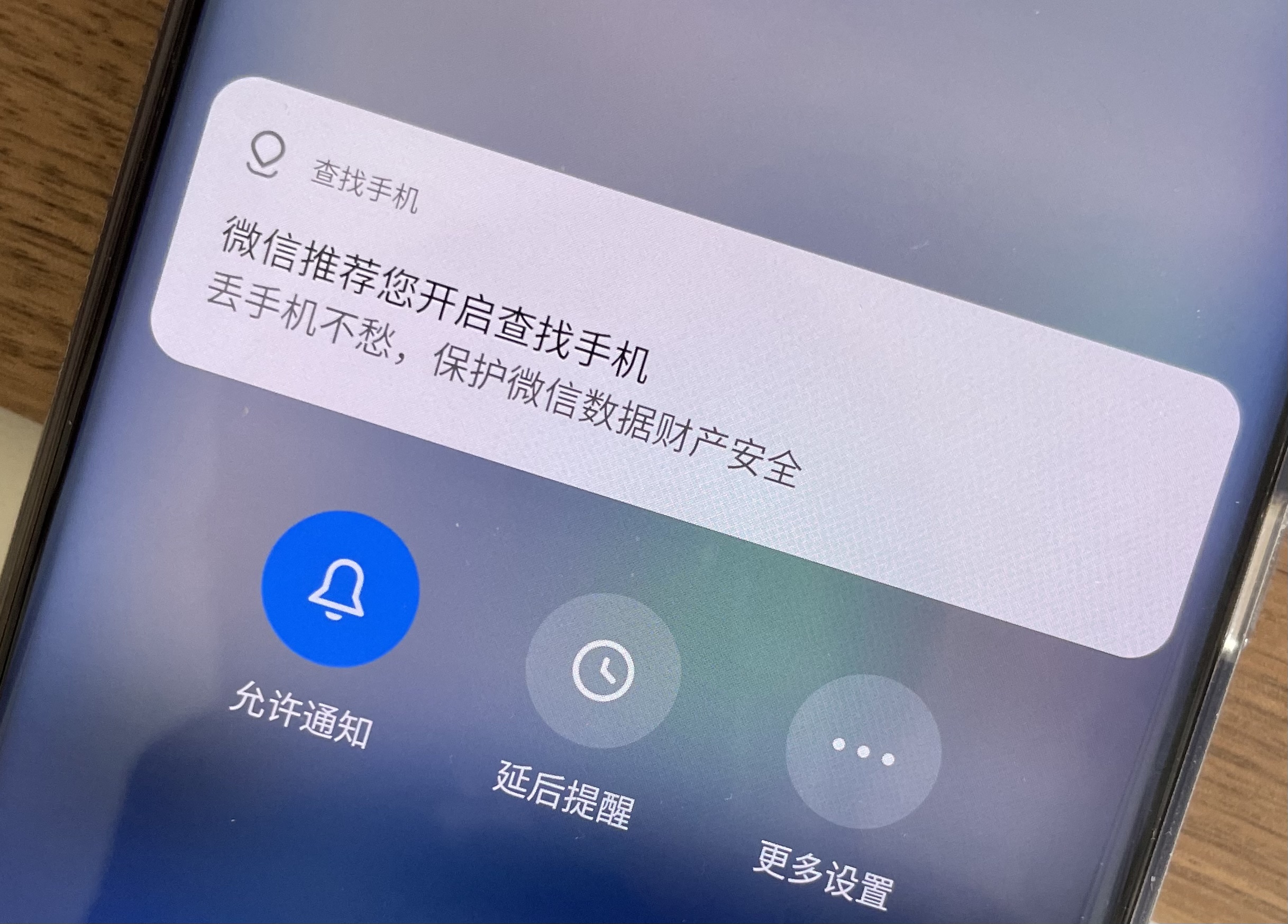
No choice, I can only lie flat...
Notes for extract img
- download and extra from https://www.xiaomi.cn/post/25769526
brew install simg2imgandsimg2img images/super.img out_super.img- http://newandroidbook.com/tools/imjtool.html
imjtool/imjtool out_super.img extract ext4fuse extracted/system_a.img sysa -o allow_other
https://medium.com/@chmodxx/extracting-android-factory-images-on-macos-cc61e45139d1
also see: https://blog.minamigo.moe/archives/184